

Administrative Tools
Search.bcg4vets.com Login: ‘bcg4vets’ Password: bcg4vets’
Website Email Accounts
messages@bcg4vets.com // Live Chat
Webmail Client: https://email.ibrave.io/
Email Settings
Username bcgadmin@bcg4vets.com
Password Use the email account’s password.
Incoming Server imap.bcg4vets.com (for POP3 use pop3.bcg4vets.com)
IMAP Port 993 (143 for non-SSL)
POP3 Port 995 (110 for non-SSL)
Outgoing Server smtp.bcg4vets.com
SMTP Port 465 (25 or 587 for non-SSL)
Username bcgadmin@bcg4vets.com
Authentication is required for IMAP, POP3, and SMTP.
Security Features
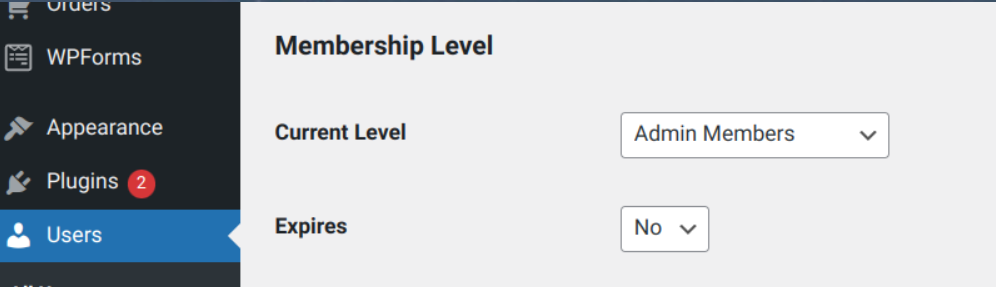
Admin Members – Membership is Required for Administration Functions. You must follow the following procedures to add a user to this group.
Goto Users Admin
Create a New User and make sure the user has the Admin Member Level Selected and Save the user.
Processing Client Documents
Admin Members – Membership is Required for Administration Functions.
All client documents Uploaded will Display in the Intake Form Entry on the following page: Entries List Page Where the files can be downloaded and reviewed by the Administrative Personnel.
Before reviewing, revising or making notes always save the document as an edited version with a new name using this naming convention prior to making changes.
Naming Convention:
$userid – mm-dd-yy – “DocName” + Extension (i.e. .docx, .xls, etc.)
(i.e. $userid-10-01-2023-$ClientDoc.docx).
When Review is over and you need to return the modified documents to the client. You must upload the new docs into a deliverable zip file using the Backend Manager.
Locate the Edited files in the “In Progress Folder”, Click Add New add the new files to a new Repository Zip File. Now Set the Library to “Outbound” when completed Click The Blue Update Button. The file can now be accessed by the client.
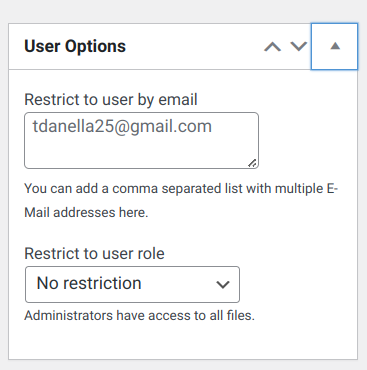
Be sure to set the security on the file so only the client with the correct email address can access it. See Image Below:
Send E-Mail to Client to Pickup The File.
Live Chat Messaging
user – messages@bcg4vets.com
pwd – D!^monds100!
https://my.livechatinc.com/welcome/profile
https://my.livechatinc.com/home Main Login To LiveChat Backend!
https://www.livechatinc.com/marketplace/apps/wordpress/
User Manual
https://www.livechat.com/help/manager-handbook/